SQL Server– Template Explorer
Yesterday when I was about to leave office , I got a call on my mobile from one of my friend. He wanted to know how to write a recursive query?
I said use Template Explorer, Where you can get examples for recursive query but He was unaware of this feature of SQL server. So I thought to write on this.
SQL server provides number of templates which can be used to Create, Alter and Drop different database objects like Table, Index, Triggers, View and many more. With the help of Template Explorer you can do DDL operation on object as well as you can learn How to write recursive query too.
Follow below steps to open the recursive query example:
Step 1- Open SQL Server Management Studio
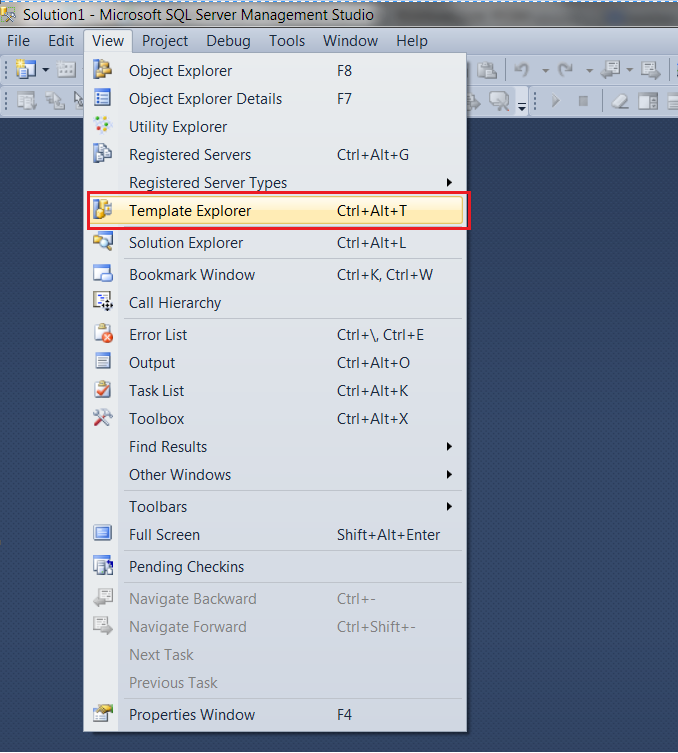
Step 2 – Use shortcut key Ctrl + Alt + T or You can find this option under View-> Template Explorer
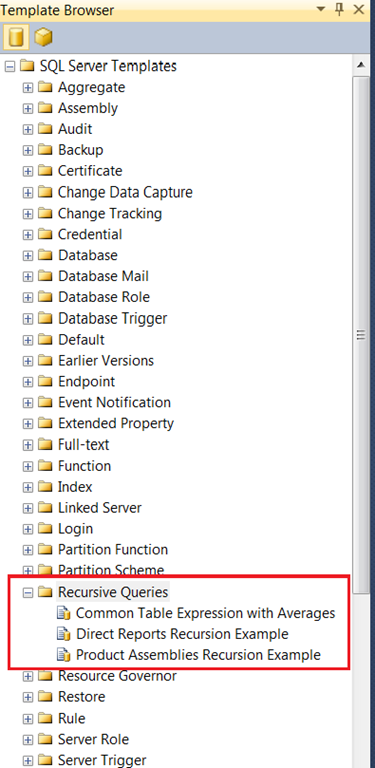
Step 3: Expand Recursive Queries section
We can create our own Custom Template. Refer How to create custom template?. When first time the template explorer is opened, a copy of the templates are placed in the user’s folder in C:\Users, under <username>\AppData\Roaming\Microsoft\SQL Server Management Studio\11.0\Templates. So that all users can have their own copy of templates.
If you liked this post, do like on Facebook at https://www.facebook.com/s4sql
2 Comments »
Leave a reply to mithun Cancel reply
About
 Sandip Pani is a MSBI/SQL Developer. He holds a Masters of Computer Application degree from IGIT, Sarang, Odisha, India and a number of certifications such as MCTS, MCITP. He has been working with SQL Server over 7 years and specializes in SQL Server for application development and performance and query tuning. He has passion to contribute to MS-SQL Server community so he is committed to SQL. He loves to share and enhance his knowledge of SQL Server by spend time at newsgroups and forums, reading and writing blogs
You can contact me at s4sql@sqlcommitted.com

 SQLcommitted
-
Archives
- January 2014 (1)
- December 2013 (3)
- August 2013 (1)
- March 2013 (1)
- January 2013 (3)
- December 2012 (2)
- November 2012 (1)
- August 2012 (4)
- July 2012 (2)
- June 2012 (2)
- May 2012 (1)
- April 2012 (5)
-
Categories
-
RSS
Entries RSS
Comments RSS
 SQLcommitted
Good one.. Even I didn’t no Template explore.. Now on wards I ll create templates and re-use it 🙂
grt article